Smartwave Z6 app guide.
Use the Smart Life app to unlock your door and create temporary passcodes for guests.
Unlock from your phone
Open Smart Life and select Smartwave Z6. Press and hold Long Press To Unlock in the centre of the screen.
To create a guest passcode, tap unlock ways at the bottom.
Connect your Z6 to Smart Life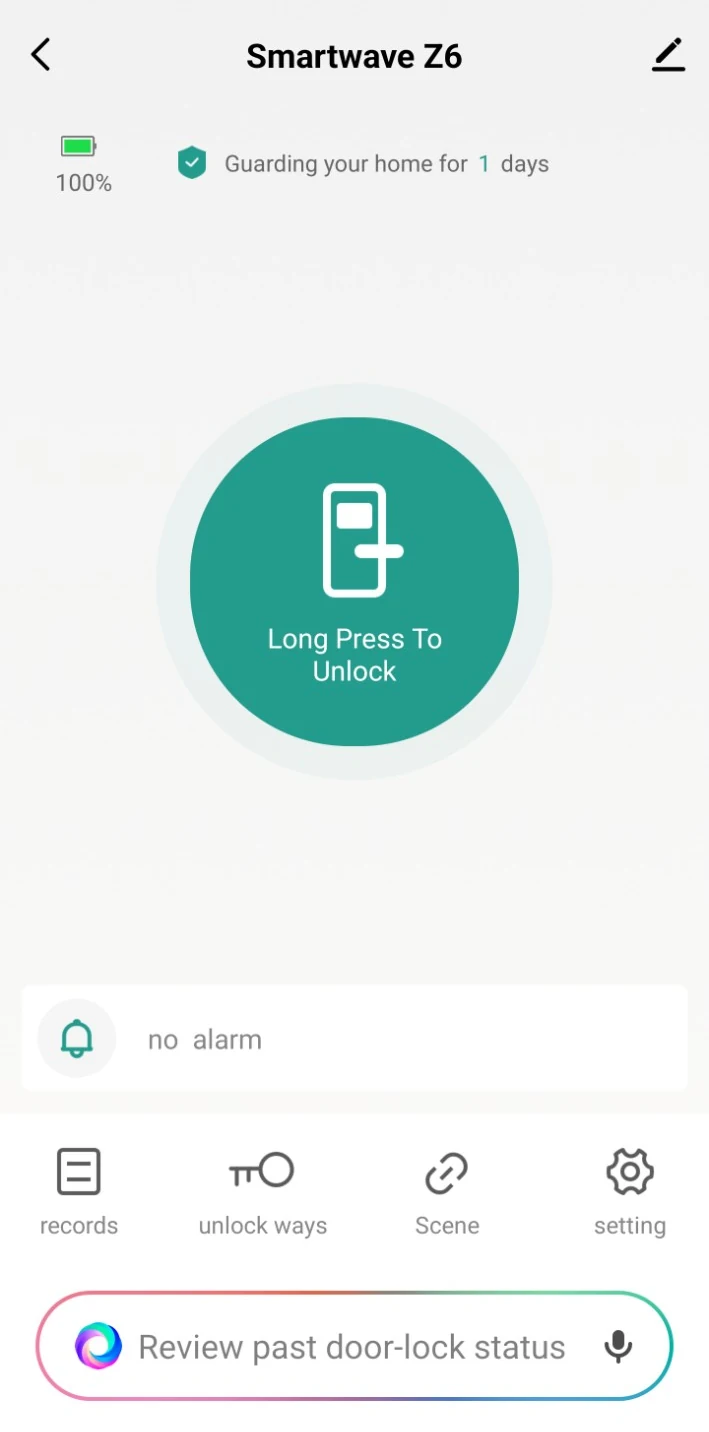
Create a guest passcode
Start on the Smartwave Z6 screen in Smart Life.
-
Open temporary lock
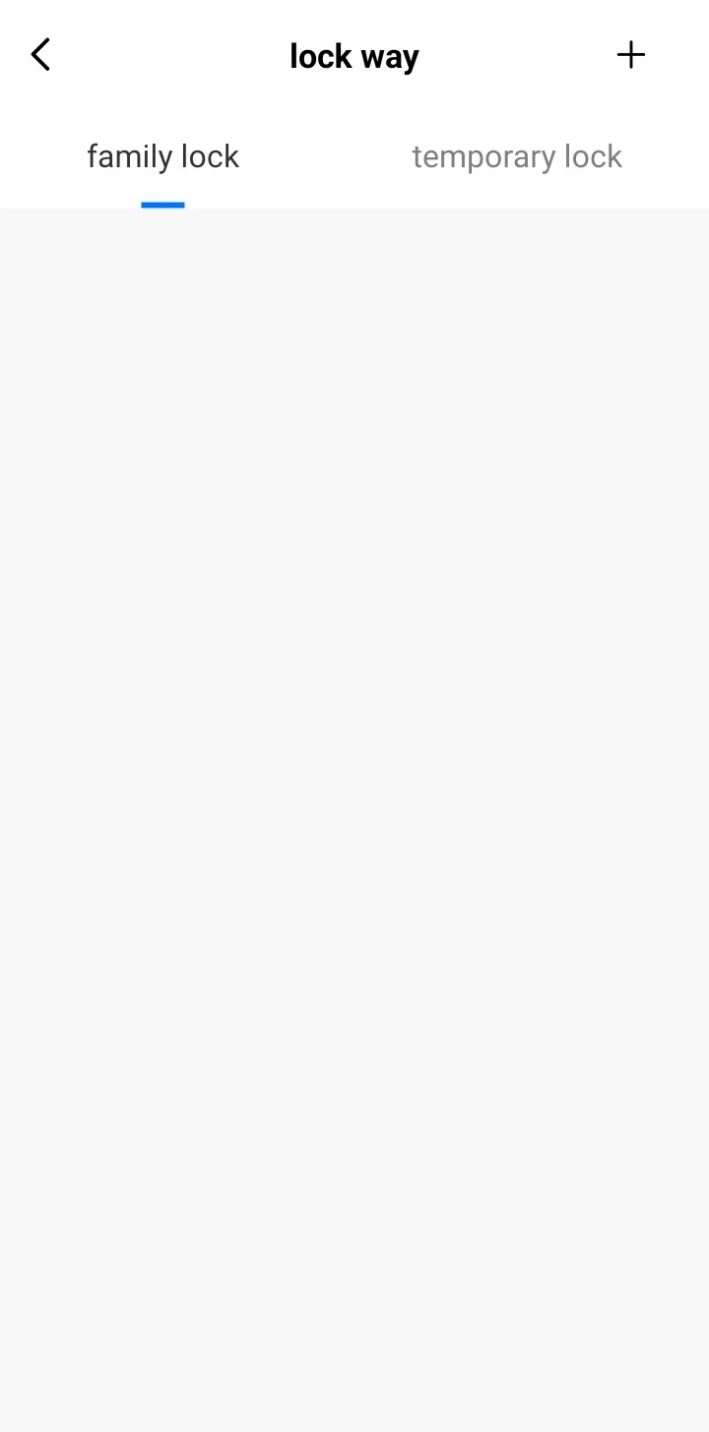
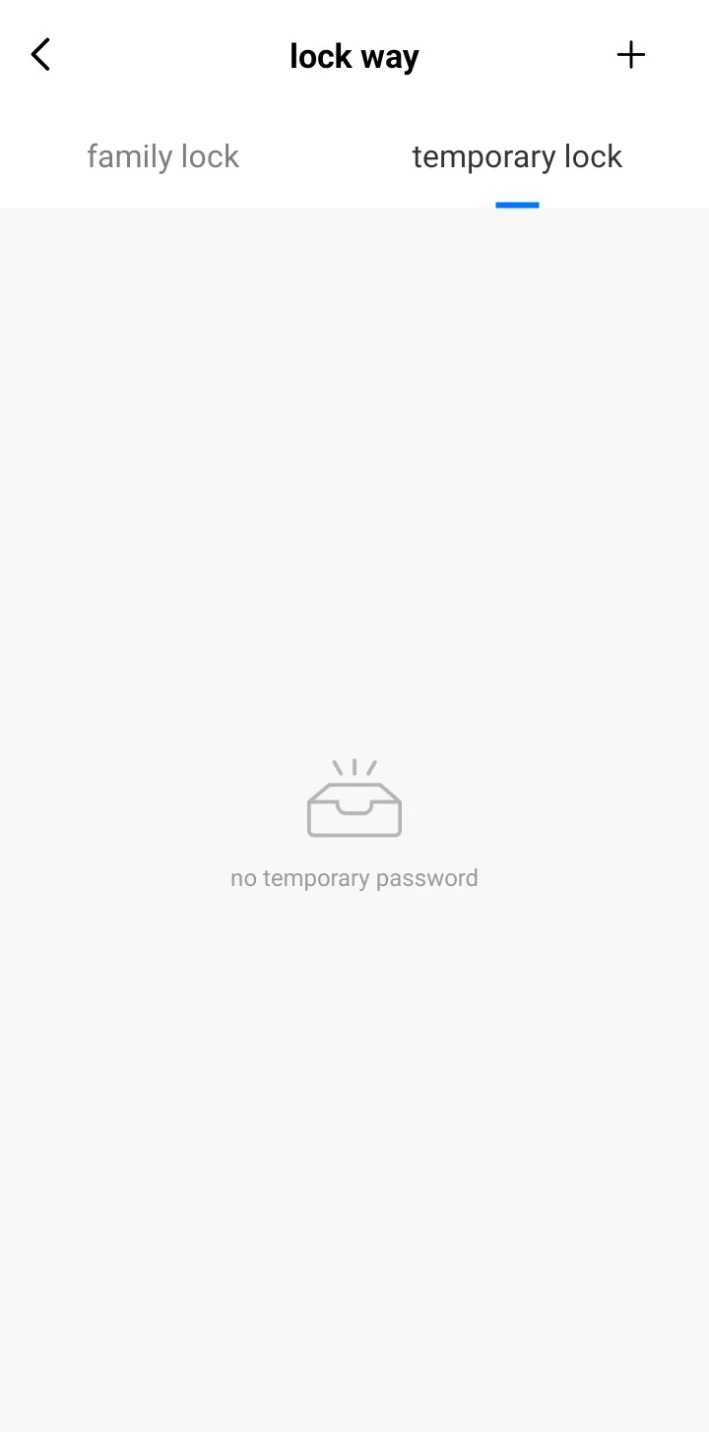
Tap unlock ways. On the lock way screen, select the temporary lock tab.
-
Tap the plus button
On the temporary lock tab, tap + in the top-right corner.
-
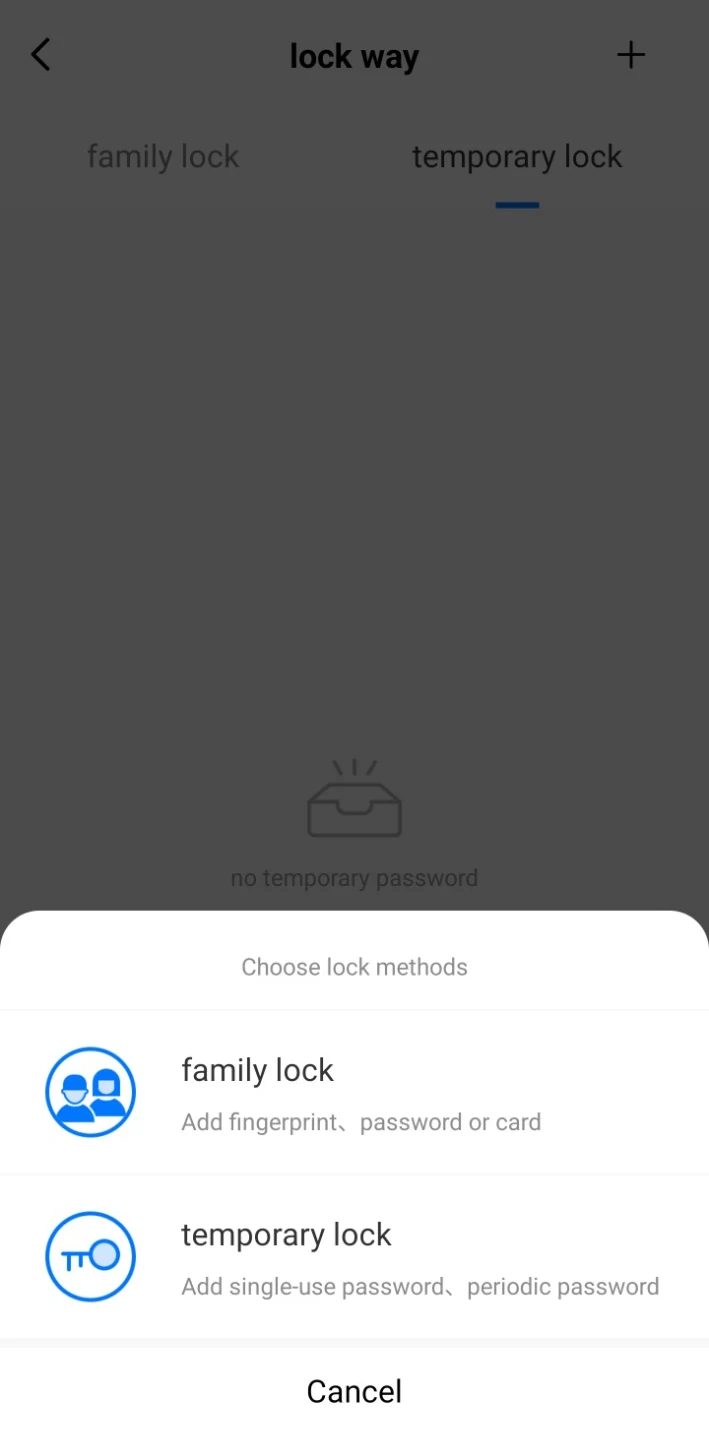
Select temporary lock
In the Choose lock methods menu, tap temporary lock.
-
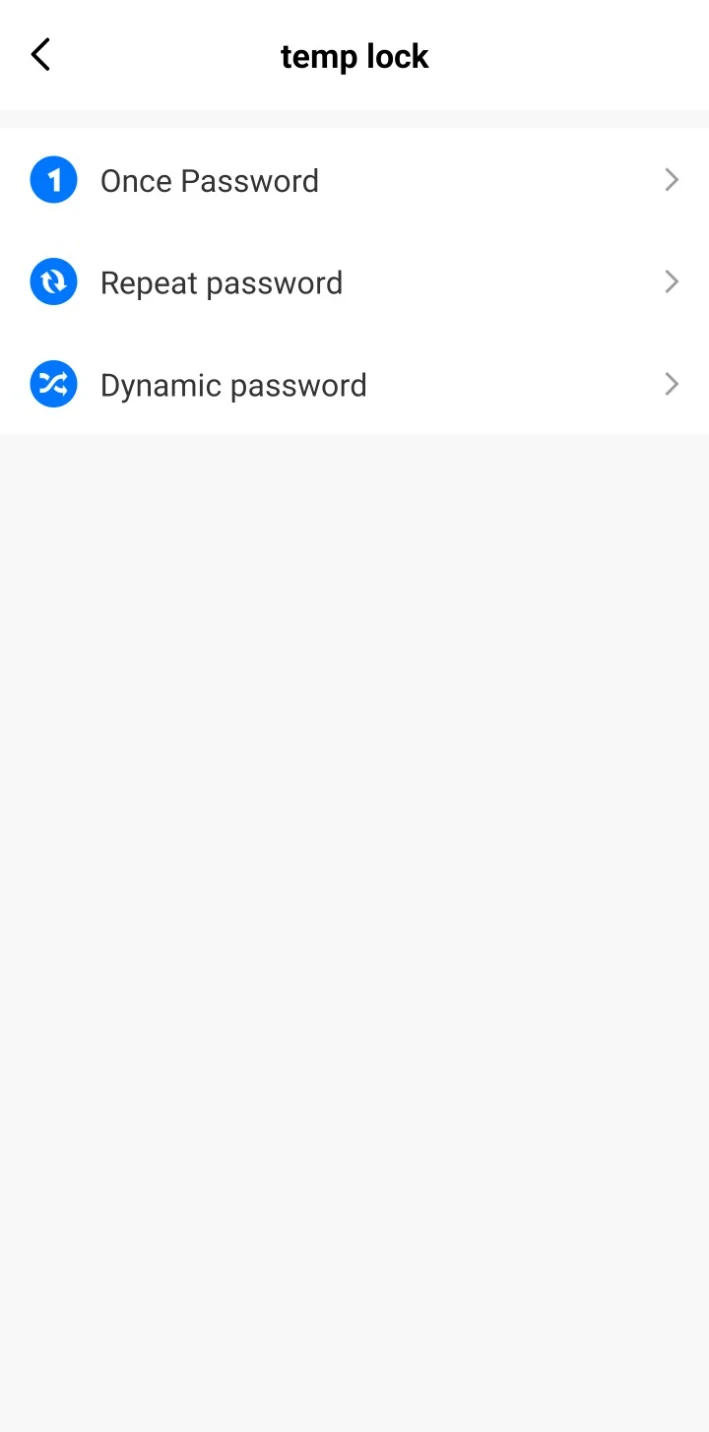
Choose a passcode type
- Once Password works once before it expires.
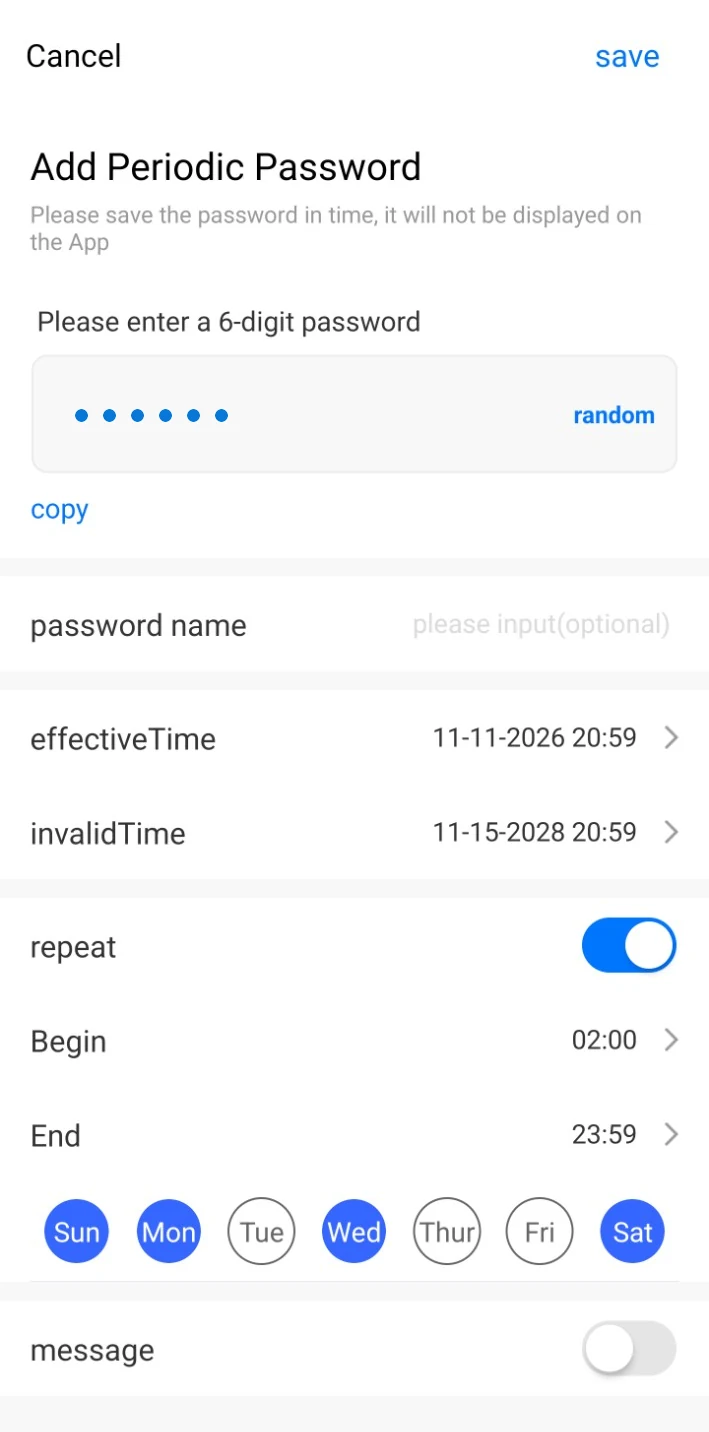
- Repeat password works throughout the dates and hours you set.
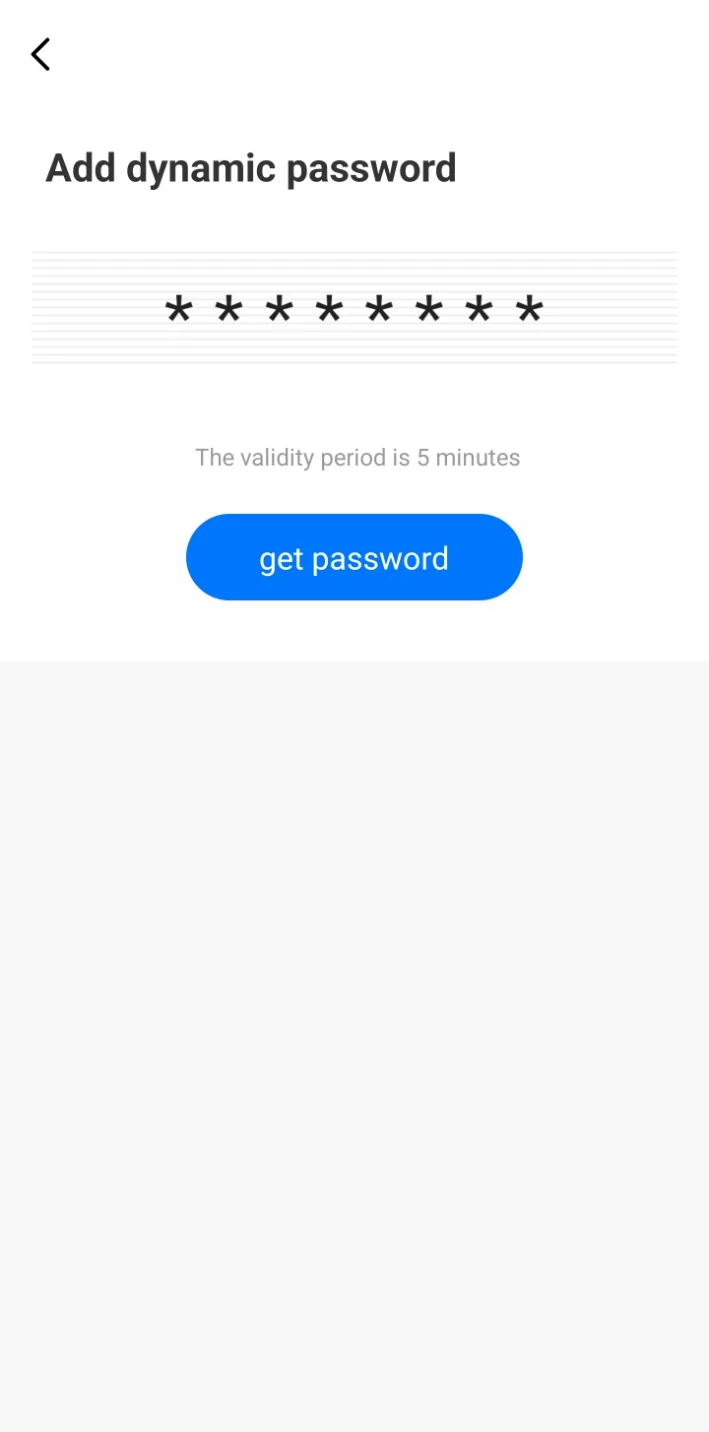
- Dynamic password works for five minutes.
Repeat password
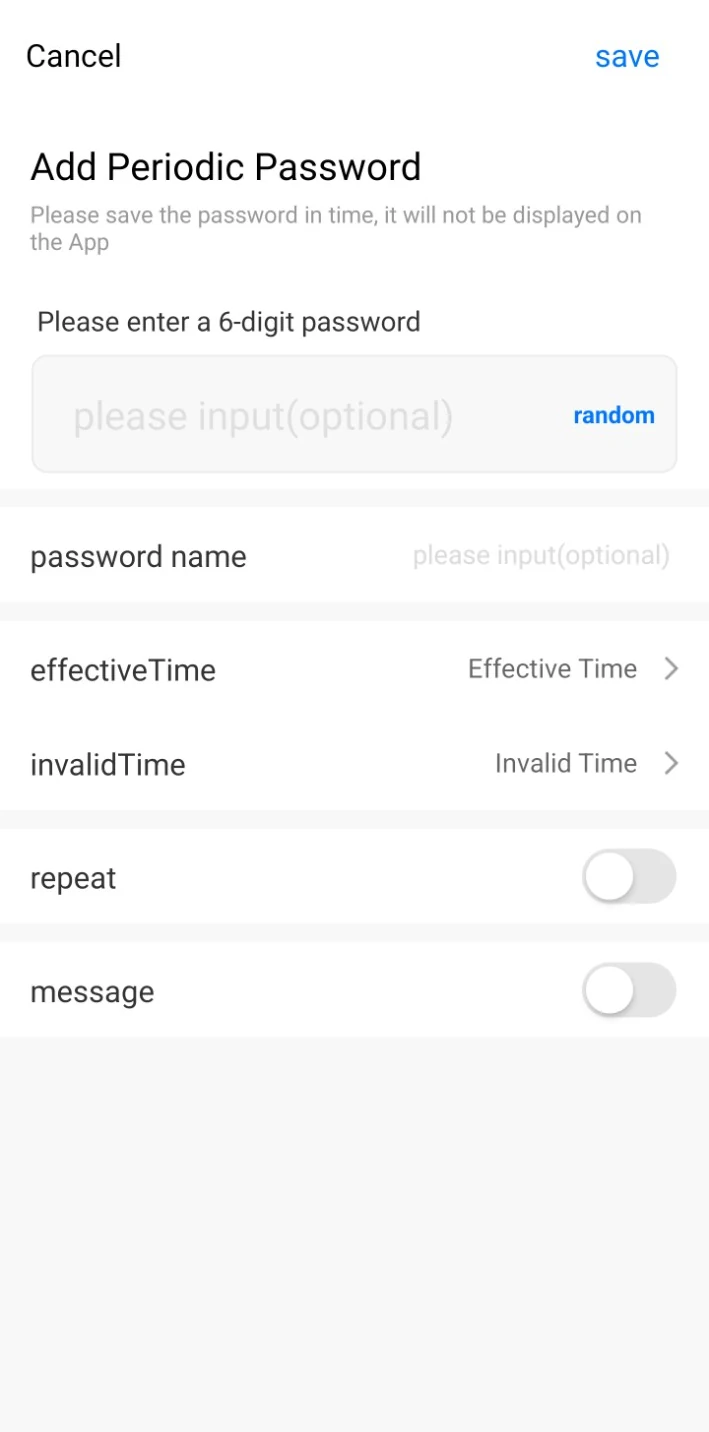
Give a guest a reusable passcode for a stay, or limit access to certain days and hours.
- Choose Repeat password. Enter a six-digit PIN or tap random to generate one. Use the guest’s name in password name so you can identify the code later.
- Set Effective Time for when the PIN starts working and Invalid Time for when it expires.
- Leave repeat off for access any time between those dates and times. Turn it on to choose the allowed days and set Begin and End hours within that period.
- Keep a copy of the PIN and tap save. The app won’t display the code again after saving.
Dynamic password
Choose Dynamic password and tap get password. The code works for five minutes after you generate it.
One-time password
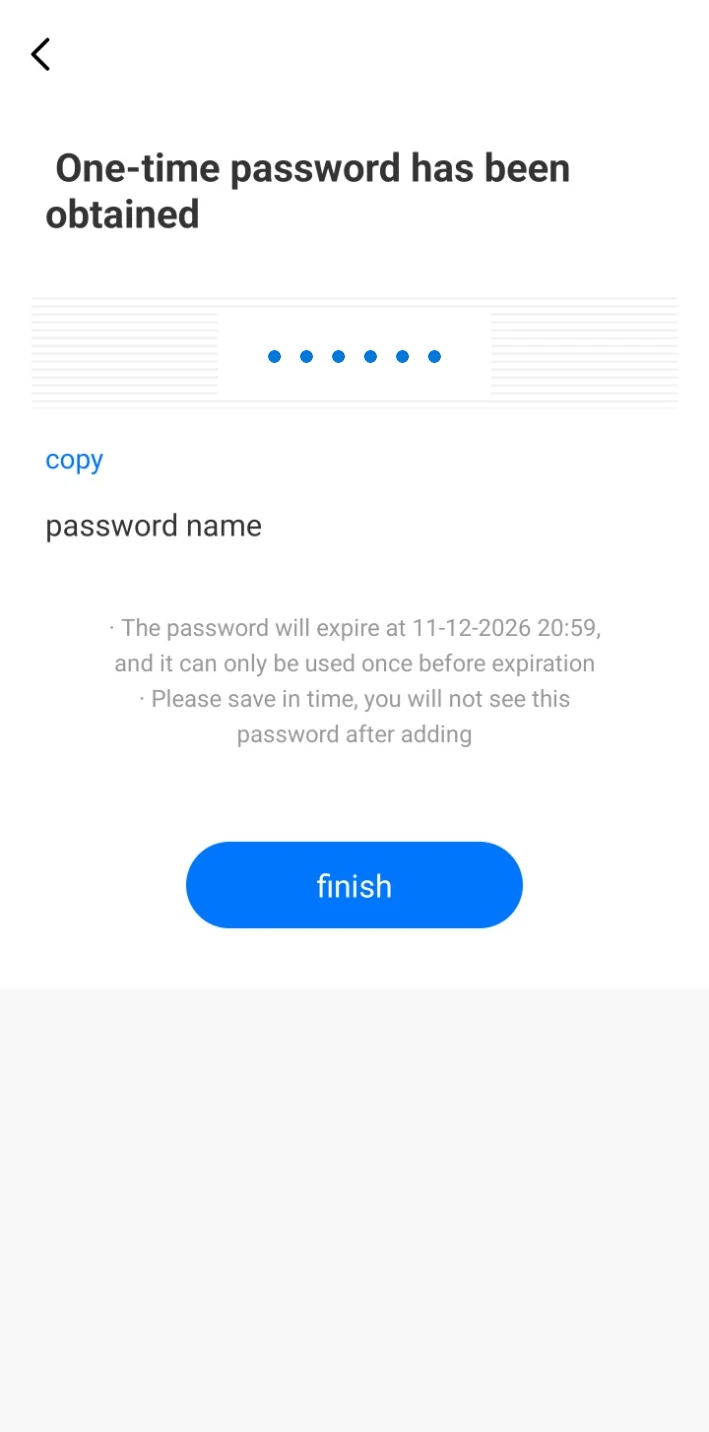
Choose Once Password. Tap copy before you tap finish. The code can be used once before the expiry time shown in the app.